Connecting Your Mobile POS to an Epson Receipt Printer: What You Need to Know

In today’s fast-paced retail and hospitality industries, mobile point-of-sale (mPOS) systems have become a game-changer. They allow businesses to process sales, manage inventory, and serve customers anywhere—on the shop floor, at a pop-up stall, or even on delivery routes. However, to ensure smooth operations and a professional customer experience, integrating a reliable Epson receipt printer with your mobile POS is essential. Epson printers are known for their precision, speed, and compatibility, making them the go-to choice for mobile POS setups worldwide. This blog will walk you through everything you need to know about connecting your mobile POS to an Epson receipt printer, including compatibility, setup options, and troubleshooting tips.
Understanding Mobile POS and Epson Receipt Printers
A mobile POS system combines a tablet or smartphone with POS software to handle transactions on the go. Unlike traditional cash registers, mPOS systems are wireless, flexible, and scalable—ideal for businesses that value mobility and quick service.
Epson has developed a wide range of receipt printers that seamlessly integrate with mobile POS systems. Popular models include the Epson TM-m30II, TM-T20III, and TM-P80 series. These printers are compact, energy-efficient, and built to connect via Bluetooth, Wi-Fi, or USB, making them highly adaptable for both fixed and mobile checkout environments.
Compatibility: Ensuring Your POS Works with an Epson Receipt Printer
Before setting up your Epson receipt printer, you must confirm that it’s compatible with your POS system. Epson printers support various operating systems, including Android, iOS, and Windows. Many leading POS applications—such as Square, Shopify POS, Lightspeed, and Vend—natively support Epson models.
When selecting your printer, check the connectivity options:
Bluetooth: Ideal for mobile setups where portability is key. It allows direct pairing with tablets or smartphones without the need for network access.
Wi-Fi/Ethernet: Best for stable, high-traffic environments like restaurants or retail stores where multiple devices share the same printer.
USB: A simple and reliable option, but it limits mobility since the printer must stay physically connected to the device.
To verify compatibility, consult both the POS provider’s device list and Epson’s official website for supported printer models and drivers.
Step-by-Step Setup Guide
1. Power and Initial Setup
Unbox your Epson receipt printer, connect the power cable, and install the paper roll. Make sure the paper is thermal (for thermal printers) and loaded in the correct direction.
2. Connect via Bluetooth or Wi-Fi
For Bluetooth connections:
Enable Bluetooth on your tablet or smartphone.
Hold the pair button on the printer until the LED indicator flashes.
Locate your printer under available devices and pair it.
Use your POS app’s settings to select the connected printer.
For Wi-Fi or Ethernet connections:
Connect the printer to your network router using an Ethernet cable or through Wi-Fi configuration software.
Print a network status sheet to find the printer’s IP address.
On your POS system, open printer settings, enter the IP address, and test the connection.
3. Install the Necessary Drivers and Apps
Depending on your POS platform, you may need to install the Epson Print SDK or Epson ePOS Print app. These ensure the system communicates effectively with your printer for fast and reliable printing.
4. Test the Printer
Once connected, print a test receipt. Check the alignment, font size, and logo placement to ensure proper configuration.
Troubleshooting Common Connection Issues
Even with proper setup, connection issues can occur. Here are common problems and solutions:
Bluetooth not pairing: Ensure both devices are within close range and no other device is already connected to the printer. Reset Bluetooth settings if necessary.
Wi-Fi connection failure: Confirm the printer and POS device are on the same network. Restart the router and recheck the IP configuration.
Paper not feeding or printing faintly: Verify the thermal paper is correctly installed and that the printer head is clean.
Printer not appearing in POS app: Ensure you have installed the correct Epson drivers or SDK package for your operating system.
Benefits of Connecting an Epson Receipt Printer to Your Mobile POS
Connecting your mobile POS to an Epson receipt printer enhances business efficiency and customer satisfaction. Epson printers deliver high-speed printing, reducing customer wait times. Their durable design minimizes maintenance and downtime, while energy-efficient components lower operational costs.
Additionally, having printed receipts improves customer trust, especially in sectors like hospitality, retail, and transportation, where proof of purchase is essential. Epson’s compatibility with mobile payment and ordering systems also helps streamline checkout processes and maintain accurate sales records.
Conclusion
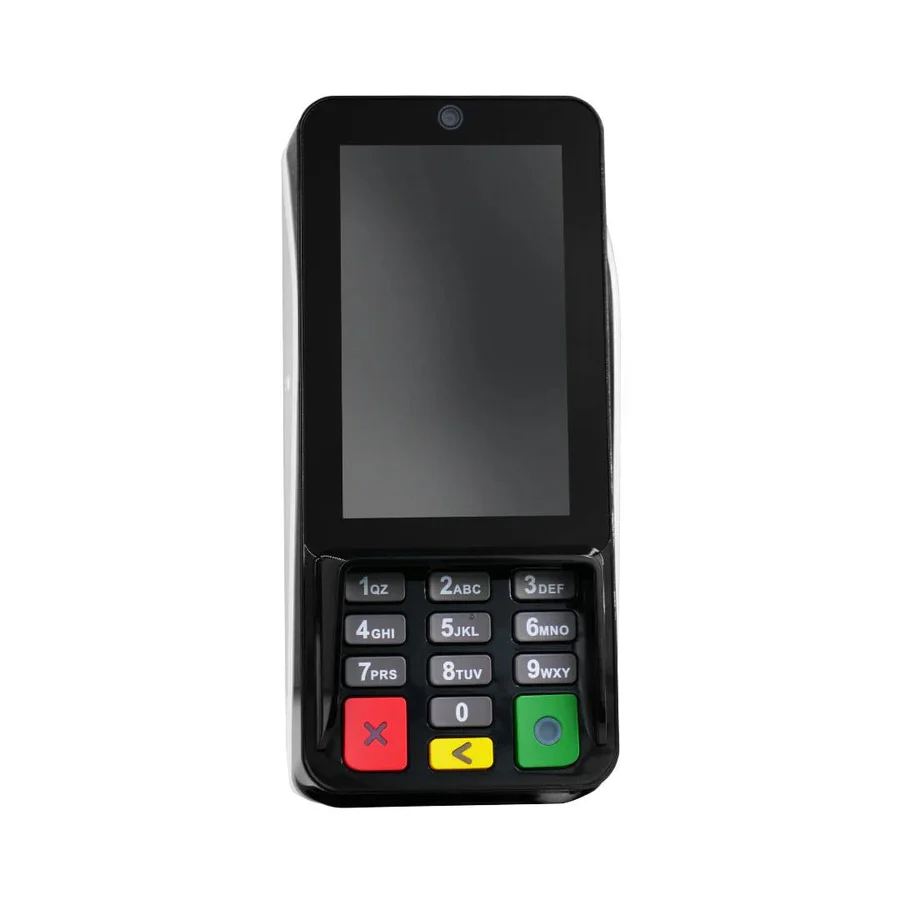
Integrating your mobile POS with an Epson receipt printer can significantly improve your business’s flexibility, reliability, and customer experience. By choosing the right printer model, confirming compatibility, and following proper setup steps, you can create a seamless point-of-sale solution suited to modern business needs. For businesses looking to enhance their overall payment process, pairing your POS and printer with a dependable card payment machine can complete your modern checkout ecosystem. Whether you’re operating a café, retail boutique, or delivery service, this setup ensures fast transactions and professional receipts—making it easier to keep customers satisfied and operations running smoothly.


Comments
Post a Comment